How to Use Claude Code Inside Cursor IDE: Setup Guide for 2026

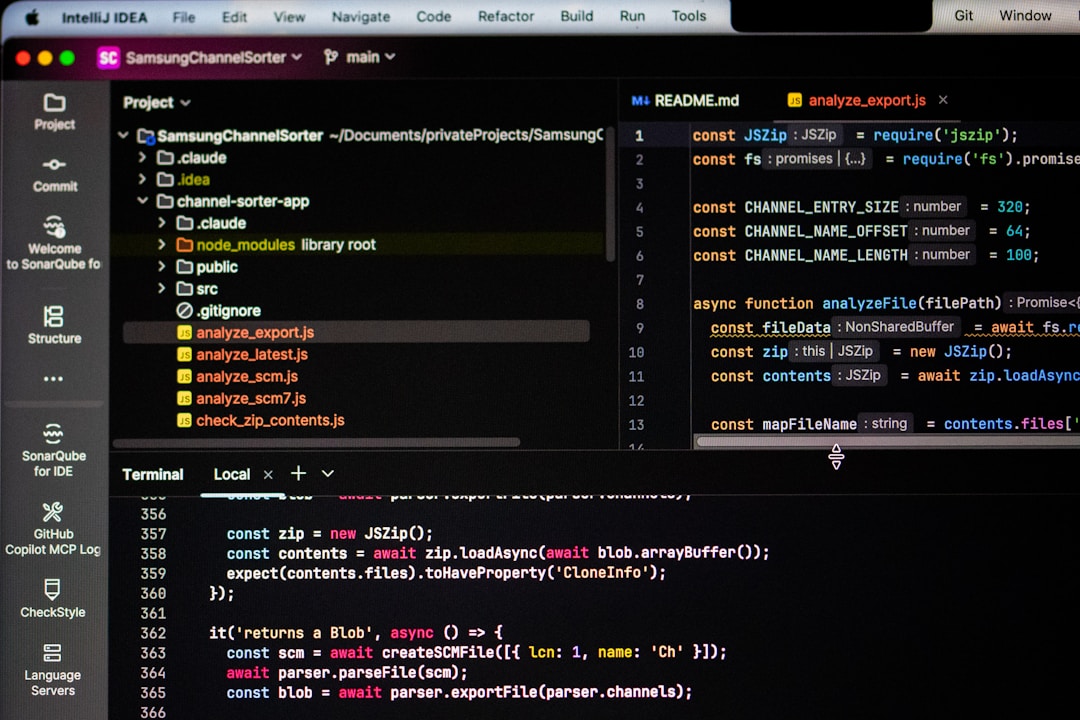
I kept seeing people say “Claude Code is just a CLI tool” and I’d have to choose between Cursor’s sleek GUI and Claude Code’s powerful agent capabilities. Turns out, I was wrong on both counts.
Let me show you how to run Claude Code inside Cursor IDE—it’s simpler than you’d think.
The Problem
I love Cursor’s IDE. The tab completions, the chat sidebar, the CMD+K edits—it’s my daily driver. But when I needed autonomous agents that could plan, execute, and iterate on complex tasks, I kept reaching for Claude Code in the terminal.
The context switching was killing my workflow:
+------------------+ +------------------+| Cursor IDE | | Terminal || | <--> | || GUI, edits, | switch | Claude Code || completions | tabs | CLI agent |+------------------+ +------------------+ | | v v Productive Productive \ / \------- FRICTION ------/Every time I needed Claude Code’s agent capabilities, I’d context-switch to terminal. Then back to Cursor for edits. Then back to terminal. Rinse, repeat.
The Solution: Claude Code VSCode Extension in Cursor
Here’s what I didn’t know until I dug into a Reddit thread: Claude Code has official VSCode and Cursor plugins. You can run Claude Code as a sidebar inside Cursor.
Step 1: Install the Extension
In Cursor, open the Extensions panel (CMD+SHIFT+X or click the extensions icon):
Extensions Panel|+-- Search: "Claude Code"|+-- Found: "Claude Code" by Anthropic| || +-- [Install] button|+-- After install: +-- Claude icon appears in sidebarAlternatively, search for “Anthropic” to find the official extension.
Step 2: Authenticate
Once installed, you’ll see a Claude icon in your sidebar. Click it:
+----------------------------------+| Claude Code |+----------------------------------+| || Welcome to Claude Code || || [Sign in with Anthropic] || || First time? You'll need an || Anthropic API key. || |+----------------------------------+The extension will guide you through authentication. If you’ve used Claude Code CLI before, it may pick up your existing credentials.
Step 3: Configure (Optional but Recommended)
Here’s where things get interesting. If you’ve been using Cursor’s AI features with a .cursorrules file, you can mirror those settings for Claude Code:
.cursorrules (for Cursor’s built-in AI):
Use concise responses. No sycophancy. Challenge assumptions.Always explain WHY, not just WHAT.CLAUDE.md (for Claude Code):
Use concise responses. No sycophancy. Challenge assumptions.Always explain WHY, not just WHAT.I keep both files in sync so whether I’m using Cursor’s chat or Claude Code’s agent, I get consistent behavior.
Three Integration Patterns
I’ve experimented with a few workflows. Here’s what works:
Pattern 1: Sidebar Only (My Default)
+------------------------------------------+| Cursor IDE || +----------+ +------------------------+ || | | | | || | Claude | | Your Code | || | Code | | | || | Sidebar | | Full editing | || | | | experience | || | Chat, | | | || | Diff, | | | || | Agent | | | || +----------+ +------------------------+ |+------------------------------------------+Best for: Most tasks. You get full agent capabilities without leaving Cursor.
Pattern 2: Terminal in Cursor
Sometimes I want multiple Claude Code instances:
+------------------------------------------+| Cursor IDE || +----------+ +------------------------+ || | | | | || | Claude | | Terminal | || | Code | | +------------------+ | || | Sidebar | | | $ claude | | || | | | | > Working on... | | || +----------+ | +------------------+ | || +------------------------+ |+------------------------------------------+I use Cursor’s integrated terminal (CTRL+`) to run Claude Code CLI alongside the sidebar. This lets me have two agent instances working on different things.
Pattern 3: Dual Instance Strategy
For complex projects, I sometimes run:
- Sidebar: For interactive editing, quick questions, file operations
- Terminal (in Cursor): For long-running autonomous tasks that I don’t want to interrupt
- Cursor’s Built-in Chat: For quick tab completions and CMD+K edits
+------------------------+ | Cursor IDE | +------------------------+ | | +--------+--------+ +---------+--------+ | Claude Code | | Claude Code CLI | | Sidebar | | (Terminal) | | | | | | Interactive | | Autonomous | | Quick edits | | Long tasks | +-----------------+ +------------------+ | | +-------- Parallel -------+This is overkill for most situations, but when I’m refactoring a large codebase while simultaneously working on a new feature, having multiple agents helps.
What You Get in the Sidebar
The Claude Code sidebar isn’t just chat. It includes:
Chat Interface - Standard conversation with context awareness
Context Engineering - Select files, directories, or specific code sections for the agent to work with
Diff Views - See proposed changes before accepting them
Agent Planning - For complex tasks, Claude Code creates a plan and executes step by step
File Operations - Create, edit, delete files with preview
Common Mistakes to Avoid
Mistake 1: Not knowing the plugin exists
I talked to several developers who thought Claude Code was CLI-only. The VSCode/Cursor extension has been available for a while—don’t miss out.
Mistake 2: Not mirroring configuration
If you have custom rules in .cursorrules, create a matching CLAUDE.md. This ensures consistent behavior whether you use Cursor’s AI or Claude Code’s agent.
Mistake 3: Ignoring the terminal option
Sometimes CLI is actually better for certain tasks—long-running operations, scripted workflows, or when you want a clean separation between agent sessions.
Mistake 4: Using only one
The power is in combining them. Use Cursor’s built-in AI for quick completions and Claude Code sidebar for complex multi-step operations.
Verification Checklist
After setup, verify everything works:
[ ] Claude Code icon appears in Cursor sidebar[ ] Authentication successful (shows your account)[ ] Can send a message and get a response[ ] File context selection works[ ] Diff preview shows for code changes[ ] .cursorrules and CLAUDE.md are in sync (if using)When CLI Still Makes Sense
The sidebar is great, but I still drop to terminal for:
- Background tasks: Long-running refactoring that I want to monitor occasionally
- Multiple projects: Quickly switching between codebases
- Scripting: Automated workflows with
claude --command - CI/CD integration: Running Claude Code in pipelines
The terminal isn’t going away—it’s just one option in the toolkit.
Summary
Don’t choose between Cursor and Claude Code. Use Claude Code as a plugin inside Cursor:
- Install the Claude Code extension from Cursor’s marketplace
- Authenticate with your Anthropic account
- Mirror
.cursorrulestoCLAUDE.mdfor consistent behavior - Use sidebar for interactive work, terminal for background tasks
You get Cursor’s excellent GUI plus Claude Code’s autonomous agent capabilities—all in one window.
Final Words + More Resources
My intention with this article was to help others share my knowledge and experience. If you want to contact me, you can contact by email: Email me
Here are also the most important links from this article along with some further resources that will help you in this scope:
Oh, and if you found these resources useful, don’t forget to support me by starring the repo on GitHub!
Related Links
- Claude Code VSCode Extension - Official extension on VSCode Marketplace
- Cursor IDE - The AI-first code editor
- Claude Code Documentation - Official docs for advanced usage
Comments